


Why one upgrade changes console graphics more than any single game patch
If you want the clearest, fastest, most consistent visual upgrade for consoles, change the display we play on. A modern HDR TV or monitor with low latency and variable refresh does more for day-to-day visuals than most GPU patches ever will.
By “upgrade” we mean a recent, low-latency, HDR-capable display with VRR support. That box in your living room affects contrast, color fidelity, motion handling, and input feel across every game immediately.
We focus on practical outcomes: what improves, why it matters, and how the ecosystem—console, TV, and game—has to work together to deliver that improvement. We’ll show what to buy, how to set up, and expect results.


What the upgrade actually is — and why it gives the biggest visible payoff
Defining the upgrade
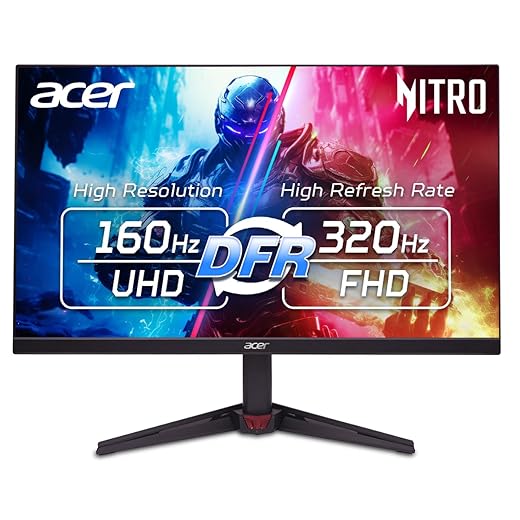
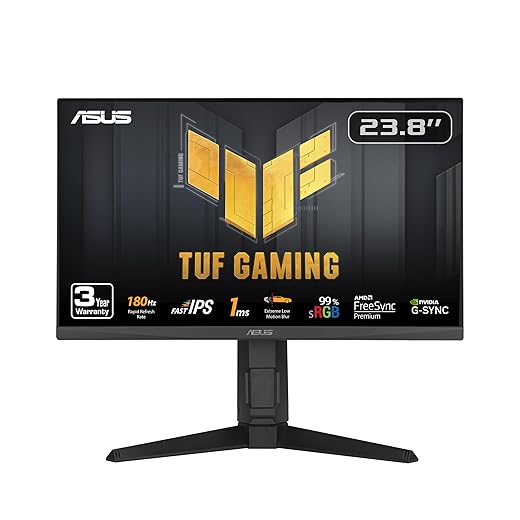
When we talk about “the upgrade,” we mean buying a modern display — a TV or monitor — that brings four things together: higher effective resolution/upscaling quality, true high dynamic range (HDR), low latency, and variable refresh (VRR). It’s the combination that changes every game you play immediately, rather than just one title. That’s because the panel is where pixels become pictures: it controls black levels, peak brightness, color volume, motion clarity, and how the console’s rendering tricks actually look on-screen.
Why this one change usually beats swapping consoles or peripherals
A GPU patch or a fancy controller improves one game or one interaction. A better display improves every game. We’ve swapped TVs mid-session and watched dark scenes suddenly reveal texture detail, bright highlights stop clipping, and fast camera pans stay readable instead of blurring into mush. In arena shooters the result is measurable: better frame-to-frame clarity and lower perceived input lag when VRR and low-latency modes are working together.
What we measure when we test displays
We focus on practical metrics that map to what you notice:
Where this upgrade matters most
Practical tip: check for HDMI 2.1 ports for full-bandwidth VRR and 4K/120Hz, use the display’s Game Mode, disable post-processing, and update the firmware — these steps let the panel do its job without introducing artifacts.
Image quality breakdown: beyond pixels to contrast, HDR, and upscaling
We’ve said the display is where pixels become pictures. Here we unpack what that actually means: the hardware and processing decisions inside modern panels that change what we notice first — black levels, highlight detail, color richness, and how “4K” is reconstructed. Understanding these elements explains why two 4K sets can look very different with the same console.
Contrast and black levels: OLED vs. local dimming
Contrast is the most visceral part of image quality. OLED panels switch pixels off entirely, giving near-infinite contrast and true blacks; dark scenes feel layered and textured. Modern LCDs close the gap with mini‑LED local dimming — thousands of dimming zones that keep bright highlights without washing out shadows. But aggressive zone control can cause haloing (bloom) around bright objects. In practice, OLEDs give the most consistent shadow detail, while high-end mini‑LEDs are the best LCD compromise.
HDR implementation and tone mapping
HDR is not just higher brightness — it’s how a display maps a game’s HDR metadata into viewable luminance. Some TVs clip bright speculars into blown highlights; others compress them into a flatter mid-tone image. Look for:
We’ve seen titles where a cheap TV renders sun flares as white blobs, while a better TV preserves rim lighting and texture.
Upscaling and scaling engines
Consoles use checkerboard rendering, dynamic resolution, or native 4K. The TV’s scaler reconstructs missing pixels and applies sharpening, temporal reconstruction, and noise reduction. Good scalers preserve fine textures without introducing halo artifacts; poor ones accentuate shimmering or make foliage look painted.
What to look for in practice:
Quick takeaways for real-world fidelity
Next, we’ll look at how frame rates, latency, and VRR tie into these visual improvements and change how games actually feel when we play.
Performance and feel: why frame-rate, latency, and VRR change how games play
We’ve talked about how games look. Now we move to how they feel in our hands — the invisible part of fidelity that makes aiming crisp, traversal smooth, and camera motion believable. Performance isn’t just numbers; it’s the tactile feedback that shapes our play.
Why refresh rate and input lag matter
Higher refresh rates and lower input lag shrink the time between our stick movement and what we see. That matters most in fast twitch moments: tracking an enemy in a shooter, threading a narrow jump, or steering through a hairpin. A 120 Hz panel can show new frame information every 8 ms; a 60 Hz set updates every 16 ms. That halving of time is felt as snappier control and reduced motion blur. Add display lag (processing delay) and controller latency, and what starts as a small gap can turn into a floaty, imprecise experience.
VRR and frame pacing: tear-free, smooth motion
Variable Refresh Rate (VRR) lets the display match its update to the console’s frame output, eliminating tearing and uneven motion when frame-rates fluctuate. Good frame pacing — consistent spacing between frames — prevents micro-stutters that are easy to miss in screenshots but obvious when we pan the camera. The result is smoother camera pans and steadier aim, even when the game drops from 60 to 40 fps.
Dynamic resolution vs. steady frame-rate: the gameplay trade-offs
Consoles often choose between dynamic resolution (sharp image when possible, lower res during heavy scenes) and locking a lower resolution to hold frame-rate steady. In practice:
Manufacturers now give modes: “Performance” (higher, steadier fps) and “Quality” (better visuals). We pick based on genre.
Quick, actionable setup tips
Next, we’ll unpack how consoles, TVs, and games negotiate these settings and why ecosystem harmony matters.
Ecosystem integration: how consoles, TVs, and games need each other
We’ve covered pixels, tone mapping, and frame pacing. Now let’s look at the bigger picture: upgrading a display is an ecosystem choice. Consoles, TVs, game engines, and even cables all have to agree — or the experience is compromised.
Standards aren’t guarantees — they’re promises that must be implemented
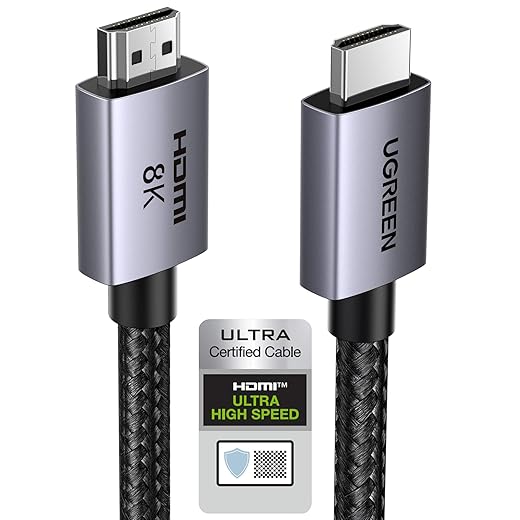
HDMI 2.1, VRR, and ALLM are the headlines, but implementations vary. A TV can advertise “HDMI 2.1” while limiting 4K@120Hz or reducing color depth on certain ports. Consoles can output VRR, but game engines must support it cleanly. We’ve seen promising specs ship with odd quirks that only firmware updates fix — so hardware spec-readers become firmware-watchers.
HDR formats: messy but important
HDR boosts contrast and color — when everything agrees. But Dolby Vision, HDR10+, and static HDR10 are not interchangeable. Some TVs handle Dolby Vision metadata brilliantly; others tone-map aggressively and crush shadow detail. Meanwhile, console support for game-mode Dolby Vision is uneven. The result: two TVs with identical panel specs can produce very different HDR images with the same console.
Platform partnerships and software matter
Platform-level features — like automatic high-refresh switching or console-specific display modes — are often the result of partnerships. Xbox and PlayStation certify TVs and push firmware patches for better compatibility. That’s why certain TV lineups behave better with specific consoles: they’re tested together. We prioritize displays with proven, ongoing firmware support over one-off spec sheets.
Practical compatibility pitfalls to watch for
Quick, practical checklist
Getting the right match between console features and display capabilities is less sexy than pixel counts, but it’s the thing that turns spec promises into a smooth, vivid reality.
How to pick, set up, and live with the upgrade: practical buying and setup advice
We’ve explained why the display upgrade matters. Now let’s get practical. Below we give a short, Wirecutter-style playbook: which specs to prioritize, how to choose for your play style and budget, step‑by‑step setup, and what to avoid.
What to prioritize when buying
How to weigh specs by play style and budget

Setup: step‑by‑step
- Update TV and console firmware.
- Plug console into the TV’s labeled 4K120/HDMI 2.1 port using a certified 48Gbps cable.
- On TV: enable Game Mode/ALLM (turns off slow processing), enable VRR if not automatic.
- On console: set 4K, 120Hz, and enable VRR/HDR output; test both Performance and Quality game modes.
- Run in‑game HDR calibration (many titles include sliders) and set brightness to preserve highlight detail.
Settings to avoid
Living with it: burn‑in, resale, and futureproofing
With the TV purchased and tuned, we’re ready to close out with how this upgrade finally improves your actual playtime.
Make the upgrade that actually improves your games
Upgrading your display is the single most impactful, universal way to make console games look and feel better. We’ve shown why pixels aren’t everything: contrast, HDR, upscaling, frame rate, latency, and VRR combine to change perception across every title. In a market where consoles, TVs, and game engines trade strengths, a thoughtful screen choice amplifies visual fidelity or responsiveness depending on what we value most.
Choose a display that matches priorities—visual fidelity, responsiveness, or value—check ecosystem compatibility, and spend time on calibration and enabling console-specific modes. Test models where possible, favor perceptible gains, and remember a considered display upgrade pays dividends across our whole library. Compare displays in person before you buy.

Chris is the founder and lead editor of OptionCutter LLC, where he oversees in-depth buying guides, product reviews, and comparison content designed to help readers make informed purchasing decisions. His editorial approach centers on structured research, real-world use cases, performance benchmarks, and transparent evaluation criteria rather than surface-level summaries. Through OptionCutter’s blog content, he focuses on breaking down complex product categories into clear recommendations, practical advice, and decision frameworks that prioritize accuracy, usability, and long-term value for shoppers.








