


Why a Dock Feels Like a Productivity Upgrade (Even if the Laptop Is Great)
We strip past the gadget gloss: a dock doesn’t just add ports — it repackages a laptop into a focused workstation. Plugging in a single cable removes daily friction, frees us from dongle hunts, and turns a portable machine into something built for longer, more concentrated work. That change is more behavior than hardware. Without sacrificing mobility or flexibility.
In the current market, small design choices matter. Docks shape our desk layout, dictate which peripherals we keep, and decide how easily devices share power and displays. We’ll analyze hardware, ergonomics, compatibility, trade-offs, and buying strategy so you can pick a dock that genuinely improves our workflow.
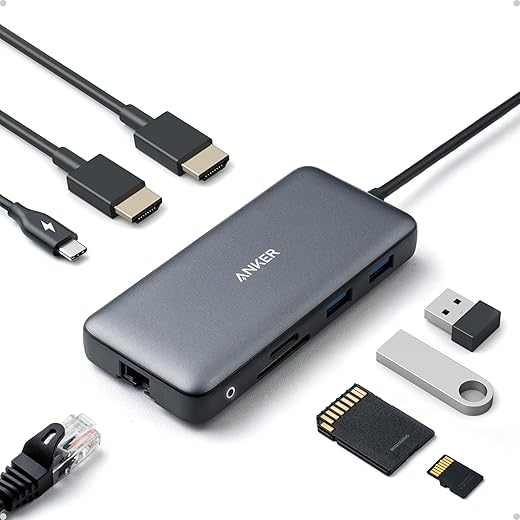
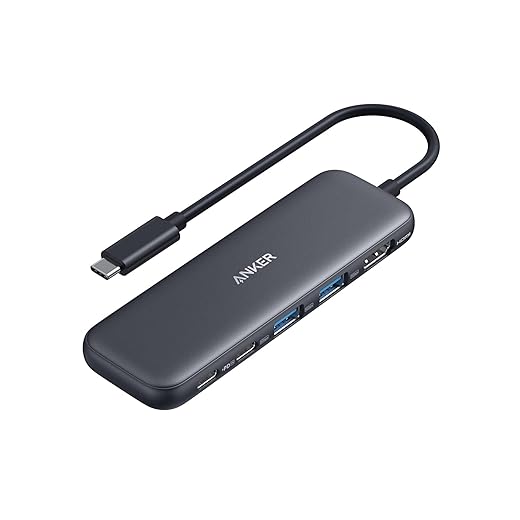
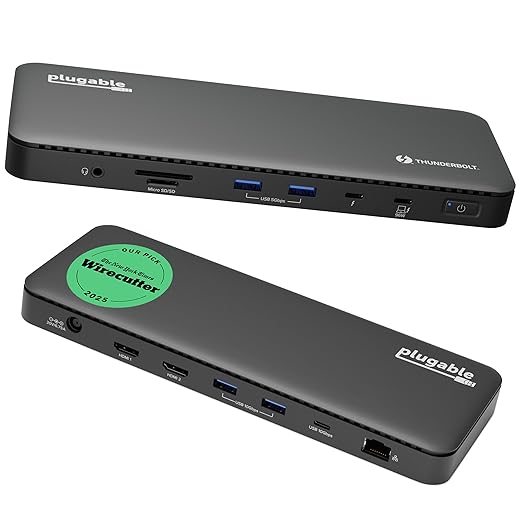
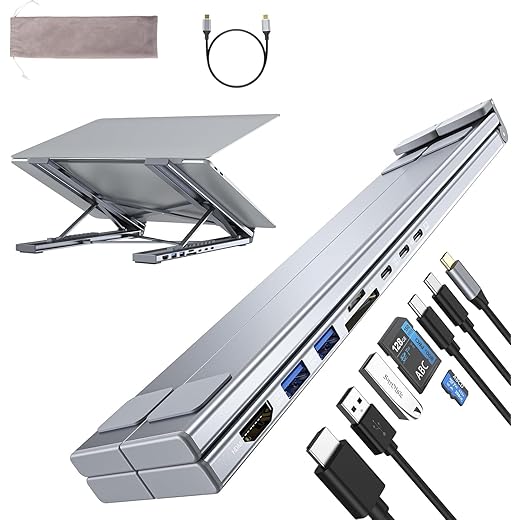
How I Made My Home Office 10x Better With ONE Dock
What a Dock Actually Changes: From Cable Tangle to Seamless Workstation
The single-cable ritual that resets our day
We’ve all done the laptop shuffle: unplug, hunt for a dongle, juggle chargers, then wrestle window placement on a single screen. A dock replaces that ritual with one physical act — a click or two — that immediately restores our multi-screen layout, external keyboard, and network connection. That “reset” is less convenience and more context switch reduction: fewer interruptions, fewer cognitive resets, more uninterrupted focus.
Persistent power and displays that just behave
When a dock supplies steady power and stable display outputs, we stop babysitting battery percentages and HDMI quirks. Monitors wake in predictable order, external webcams and mics keep their settings, and presentations don’t die halfway through. Practically, this means longer deep-work sessions and fewer frantic troubleshooting minutes before meetings.
Peripherals that stay put — and the small ergonomics wins
A dock lets us leave the good stuff at the desk: mechanical keyboard, ergonomic mouse, docking monitor arm. Instead of rebuilding our setup every time, we reconnect to the same physical environment. Tip: designate one USB port for your keyboard and one for the mouse — don’t swap them between hubs — to avoid driver reinitialization.
Why the dock wins over ad-hoc hubs
Ad-hoc dongles and random USB splitters solve a momentary need but don’t scale. They introduce inconsistent power delivery, flaky display passthrough, and device re-enumeration that breaks shortcuts or audio routing. Purpose-built docks (CalDigit TS4, Dell WD19, OWC Thunderbolt docks) are designed to keep device states persistent across sessions — that’s the meaningful productivity delta.
Quick practices to maximize gains
These shifts aren’t flashy, but they are the daily changes that reclaim minutes and attention each time we sit down to work — and that accumulates fast as hybrid routines become the norm.
Ports, Power, and Displays: The Hardware That Magnifies Productivity
Port variety and real bandwidth
Not all ports are equal. A USB-C port limited to USB 3.1 won’t move data like a Thunderbolt 4 port, and that matters: a 40 Gbps Thunderbolt link moves video and NVMe backups without choking; a 5 Gbps USB-A port can turn a fast SSD into a sluggish external drive. Look for a mix: high-bandwidth host ports (Thunderbolt 3/4 or USB4), a couple of USB-A for legacy gear, gigabit Ethernet for stable networking, and an SD slot if you shoot photos. Practical tip: check aggregate bandwidth — many docks share one pipe, so multiple 4K displays plus a drive can saturate it.
Power delivery and heat
Power Delivery (PD) spec isn’t marketing fluff. Ultrabooks often get by on 65W, but thicker dev or workstation laptops may need 85–100W to avoid battery drain under load. If you run heavy builds or render video while docked, choose a dock with enough PD headroom. Also watch thermal design: docks that vent heat poorly throttle ports or fail earlier. We’ve seen inexpensive hubs get hot enough to drop display outputs after sustained workloads.
Display topologies: MST, DP Alt Mode, and daisy-chaining
Daisy-chaining via Thunderbolt is seamless across platforms; DisplayPort MST can extend multiple monitors on Windows but is often unsupported on macOS when using USB-C DP Alt Mode. High-refresh or color-critical monitors need more bandwidth — that’s where docks advertising 4K@60Hz per port (or dual 4K support) matter. For color work, prefer docks that pass a full DisplayPort or Thunderbolt signal rather than compressing or using USB graphics chipsets.
Match specs to workflows
Reliability checklist (quick)
Next, we’ll look at how docks sit inside wider device ecosystems and why compatibility decisions matter.
Design and Ergonomics: How a Dock Shapes Daily Workflow
Footprint and placement
Where you put a dock changes how you use your desk. A vertical tower-style dock tucks beside a monitor or under a stand and frees surface area; a shallow, top-mounted hub sits where you can reach it and makes hot-plugging thumb drives painless. We recommend placing the dock on the same side as your dominant hand and routing monitor and power cables behind a monitor arm so connectors don’t tug on ports when you swivel a screen. In our office, moving a vertical dock under the monitor stand reclaimed enough desk space for a second notebook — and eliminated an under-desk cable spaghetti.
Build quality, materials, and connector durability
Cheap plastic hubs that flex or use flimsy connectors break the simple promise of a dock: save time. Look for metal housings, reinforced USB-C/Thunderbolt sockets, and replaceable host cables. Test ports in-store if you can — they shouldn’t wiggle. A solid chassis also helps heat dissipation, which preserves port life and keeps firmware stable over long workdays.
Latency, tactile feedback, and peripheral persistence
Peripheral feel matters. Keyboard and mouse latency introduced by a hub is often tiny, but audio interfaces, mechanical keyboards, and gaming mice can reveal weak hubs. Pick docks that preserve native USB HID paths (avoid USB-graphics-based hubs for input-heavy work). Also check for “peripheral persistence” — whether the dock keeps devices enumerated during host sleep or quick laptop swaps — and whether Wake-on-LAN and wake-from-USB work reliably.
Accessibility and multi-user setups
For hot-desking, prioritize front-facing USB ports, detachable wireless-dongle trays, or docks that support multiple host profiles. KVM-style features or a small carry dongle can make switching between two laptops painless. For shared conference rooms, a compact top-access hub beats a buried vertical dock — it removes friction and speeds handoffs.
Match these physical and interaction choices to your workflow: creators and gamers need rigid builds and low-latency paths; nomads want light, front-access hubs; multi-user spaces need quick-swap and profile support.
Ecosystem Integration and Compatibility: The Dock as a Platform
Cross-platform reality checks
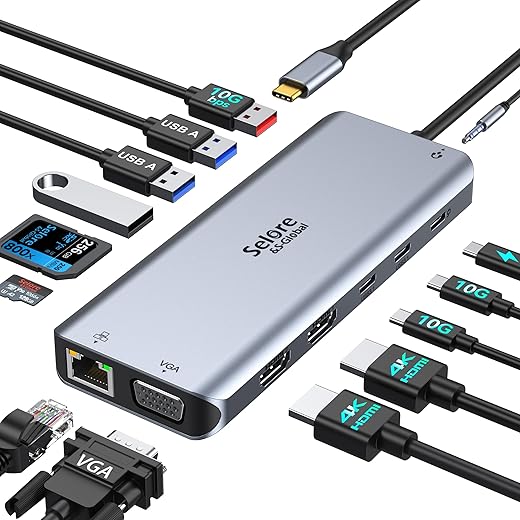
A dock doesn’t live in isolation — it lives inside an OS ecosystem. In practice that means Windows, macOS, Linux, and iPadOS all treat docks differently. Thunderbolt/USB-C Alt Mode docks (think CalDigit TS4 or Dell WD19) usually behave predictably on Windows and Intel Macs; DisplayLink-based docks can add displays everywhere but rely on drivers that macOS and many Linux distros treat as second-class citizens. On iPadOS, external-display behavior is dictated by the app, not the dock — so don’t expect macOS-like multi-window support.
Vendor software, firmware, and why it matters
Manufacturers either tightly integrate docks with their laptop families (Lenovo, Dell, Apple) or lean on open standards. Tight integration buys benefits: firmware updates that match specific system BIOS, profile syncing for power/display preferences, and fewer weird sleep/wake problems. The downside is vendor lock-in. When drivers and firmware are poorly coordinated, we see flaky wake-from-sleep, missing NICs after Windows Feature Updates, or displays that drop after lid close.
Enterprise realities: security and manageability
IT teams care less about aluminum and more about asset tagging, firmware signing, and update pipelines. Docks with MDM-aware firmware, or ones that appear as standard NICs and USB devices, are easier to roll into Microsoft Endpoint Manager or Jamf. Watch for interactions with VPN split-tunneling, network boot/PXE, and Wake-on-LAN — docks that insert themselves into the network stack can complicate remote imaging or enforce extra firewall rules.
Tips for buying and deploying
We’ll look next at trade-offs and when a dock isn’t the right tool for the job.
Trade-offs and Alternatives: When a Dock Is Not the Answer
When a dock is overkill
We often see people buy docks because they feel inevitable — but for many users they’re unnecessary. If you:
then a full-size Thunderbolt dock adds cost, weight, and a layer of complexity that doesn’t buy much. In real life, a simple USB-C hub or a single-purpose dongle (HDMI adapter, Ethernet dongle) is faster to pack, cheaper to replace, and less likely to trigger driver hiccups.
Thunderbolt docks vs USB-C hubs — pick the right lane
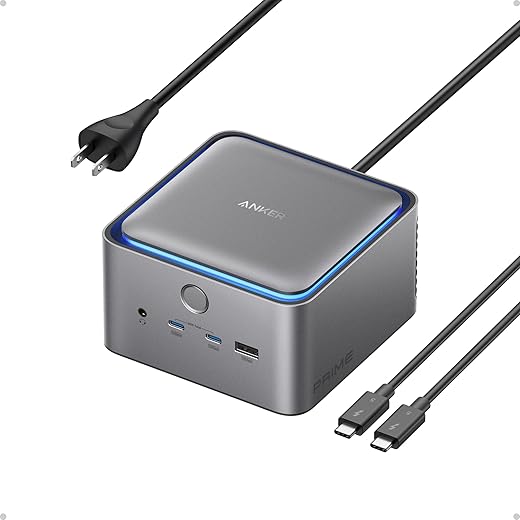
Thunderbolt docks: high bandwidth, multiple high‑res displays, and sustained high-watt PD. They’re ideal for content creators or power users who need everything connected all the time.
USB-C hubs: cheaper, lighter, and usually plug-and-play for basic needs, but limited by fewer PCIe lanes and Alt Mode channels — so expect fewer displays and lower refresh rates. Choose a hub if you want portability and only occasional expansion.
When proprietary or built-in ports make sense
Some vendors (ThinkPad mechanical docks, Apple’s MagSafe/Pro Docking approach) offer tight integration: BIOS-aware power negotiation, firmware-matched features, and reliable sleep/wake. That integration pays off in enterprise fleets or if you never swap laptops. Likewise, if your laptop already has plenty of native ports, adding a dock is redundant.
Cloud and virtual desktop alternatives
If your workload is compute- or GPU-heavy but display-light, consider VDI/cloud desktops (Amazon WorkSpaces, Azure Virtual Desktop) or a thin client. They shift performance demands off-device — but they require consistent network quality and can introduce latency for interactive work.
Quick checklist to decide now
Next, we’ll translate this into a practical buying framework so you can match features to your workflow.
How to Choose the Right Dock: A Practical Buying Framework
Start by auditing your setup
We begin where most purchases should: with a quick inventory. Track what you actually use for a week — monitor count and native resolution, USB devices (Type-A, audio interfaces, printers), card readers, and whether you need stable Ethernet. Measure peak charging needs: does your laptop require 65W, 100W, or more under load? Those facts collapse choices faster than brand loyalty.
Prioritize standards and vendor support
Opt for standards-first docks: Thunderbolt 4 (or Thunderbolt 3 for older machines) or USB-C with explicit DisplayPort Alt Mode and Power Delivery ratings. Look for clear specs — not marketing fuzz — and confirm the dock supports your monitor resolutions at the refresh rates you care about. Check for firmware update paths and a vendor that publishes compatibility lists and release notes. Real-world reports on multimonitor sleep/wake behavior are worth more than glossy spec sheets.

Future‑proofing and practical features to favor
Favor docks that give room to grow: extra spare ports, a higher-watt PD headroom, or modular add‑ons (SATA, M.2, or bay expansions). If you’re a creator, prioritize discrete DisplayPort lanes and sustained power delivery; if you commute, weight and one‑cable reconnect speed matter more. Small design differences — internal thermal mass, metal chassis, or active cooling — affect reliability under sustained loads.
Budget tiers and use‑case matchups
Quick in‑person test checklist
When possible, test:
Warranties, return windows, and when to choose vendor docks
Prioritize longer warranties and flexible return windows — docks are one of the few peripherals where a two‑week test is invaluable. Favor vendor-integrated docks when you need rock‑solid sleep/wake, centralized firmware management, or enterprise deployment.
With this buying framework we can move to the final point: why consistency matters more than features alone.
The Real Productivity Upgrade Is Less Glamour, More Consistency
We started this piece arguing that a dock isn’t a headline speed bump; it’s a systemic reduction of friction that turns a laptop into a dependable workstation. In today’s crowded market of flashy specs and one‑off dongles, the real win is consistent ergonomics, predictable port behavior, and power and display integration that save minutes and cut cognitive load every day. That’s why design, ecosystem fit, and long‑term support matter more than raw throughput numbers.
Match docks to your workflows, weigh trade‑offs like portability and upgradeability, and test compatibility when possible. Treat a dock as a deliberate investment: small daily savings compound into meaningful productivity gains. Try one, and notice the difference.

Chris is the founder and lead editor of OptionCutter LLC, where he oversees in-depth buying guides, product reviews, and comparison content designed to help readers make informed purchasing decisions. His editorial approach centers on structured research, real-world use cases, performance benchmarks, and transparent evaluation criteria rather than surface-level summaries. Through OptionCutter’s blog content, he focuses on breaking down complex product categories into clear recommendations, practical advice, and decision frameworks that prioritize accuracy, usability, and long-term value for shoppers.






