


Why a focused upgrade beats a full overhaul
We favor targeted improvements over sweeping redesigns because small, strategic buys deliver the biggest day-to-day returns. We start with a quick audit of work habits, pain points, and the devices we already use. That audit reveals where ergonomics, display clarity, or audio issues interrupt focus. We then rank fixes by impact and cost.
We focus on user experience, ecosystem fit, and design trade-offs so purchases compound instead of clash. Choosing a better chair or a brighter display changes posture, comfort, and flow more than a fancy lamp. We explain what to buy first, why it matters now, and how each choice plays with the rest of your setup — and long-term productivity gains.



Top 16 Work-From-Home Office Essentials Worth Your Money
How to decide what to buy first: a quick needs-and-budget audit
Start with a two-minute inventory
We ask three quick questions: what frustrates us most, how many hours we spend at the desk, and which devices we use daily (laptop model, phone, router). That snapshot stops wishful thinking and surfaces real constraints — small desks, single USB-C port, or a wired headset that never fits right.
Score your pain points
Give each area a 1–5 score: comfort, audio/video, multitasking (screens/inputs), and connectivity. A simple grid helps:
Higher scores mean bigger priority. If audio and video are 5s because we’re on calls all day, a mic/webcam beat a second monitor.
Map scores to a flexible budget
Translate scores into rough spends:
Actionable tip: cap your first phase at ~25–40% of your total intended spend. That keeps upgrades focused and measurable.
Check ecosystem compatibility and use cases
Look at ports, OS, and smart-home needs before buying. A Thunderbolt dock (CalDigit TS3 Plus) is useful if your laptop has one port; otherwise a simple Anker USB-C hub will do. Creatives may need color-accurate monitors (Dell UltraSharp U2720Q); frequent callers get more value from a Blue Yeti or Logitech Brio than a pricier GPU for editing.
Compare common upgrade paths — what actually moves the needle
A flashy spec (32″ 4K monitor) can underdeliver if your desk is tiny or your OS UI scales poorly; a 27″ 1440p often yields better pixel density and ergonomics. Likewise, a $300 gaming mouse won’t improve comfort the way a supportive chair does for eight-hour days.
This quick audit turns fuzzy desires into a ranked shopping list. Next, we dig into ergonomics — the purchases that most reliably change how we feel at work.
Ergonomics first: chairs and desks that change how we feel at work
We start with ergonomics because it delivers an immediate, measurable return: less pain, fewer breaks, and clearer focus. Replacing a crate-of-a-chair or adding a height-adjustable desk often changes the whole day more than a faster laptop. Here’s what actually matters when we shop.
What to look for in a chair
A pricier chair typically pays back for daily heavy users (think 6+ hours/day). For hybrid or occasional users, a well-reviewed midrange chair (Branch, Autonomous, or IKEA’s ergonomics-forward models) often hits the sweet spot.
Desks that stay honestly stable
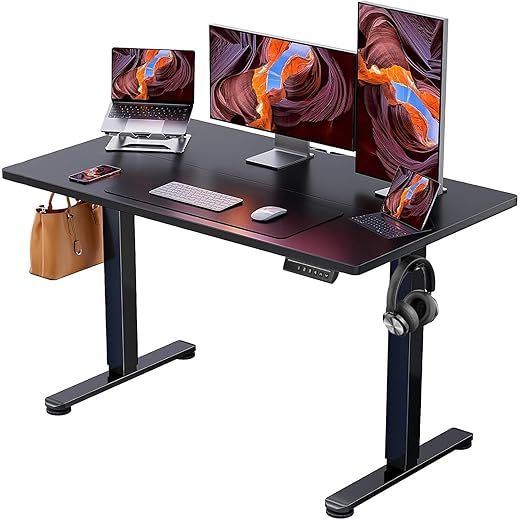
Stable height-adjustable desks are our next priority: smooth, wobble-free lifting, adequate weight capacity, and a programmable keypad matter more than a fancy tabletop finish. Single-motor desks save cash but dual-motor frames are noticeably steadier at taller heights.
Quick posture wins without a full spend
We’ve seen teams transform comfort with just these swaps; next, we’ll look at displays and inputs that complement a better posture and desk setup.
Displays and input: choose a screen, keyboard, and mouse to boost flow
We treat monitor, keyboard, and mouse as a productivity triangle: when they’re aligned to the task and each other, we spend less time fighting windows, posture, or input lag—and more time in the zone.
Screen: size, resolution, and panel trade-offs
Pick a monitor for how you work, not what’s trendy. Quick rules:
Ultrawide vs dual monitors: ultrawides reduce bezel interruptions and simplify window tiling; duals give flexible orientation (portrait for docs/code). For laptops, prefer a monitor with USB‑C docking and Power Delivery so a single cable carries display, data, and charging.
Keyboard and mouse: reduce friction
Mechanical vs membrane? Mechanical switches give tactile feedback for heavy typists; low-profile or scissor-switch keyboards are quieter and still fast. Split and curved layouts (ergonomic) can cut wrist strain over long sessions.
For mice, match shape to grip and task: a lightweight, high‑DPI mouse for design/precision work; a comfortable ergonomic mouse (vertical or trackball) if we suffer wrist pain. Multi‑device pairing and software macros (Logitech Options, Razer Synapse) can cut context switches across devices.
Ecosystem and practical tips
Next, we’ll translate this clearer workspace into sharper calls and recordings—covering microphones, webcams, and lighting that make us sound and look as capable as our new setup feels.
Audio and video for modern calls: microphones, webcams, and lighting that help us be heard and seen
Why this should come early
Remote meetings are now a daily interface for credibility. A clear voice and flattering, stable picture change how colleagues perceive us more than a faster CPU. We prioritize fixes that improve presence quickly: better mic placement, a small dedicated webcam, and even a compact light deliver outsized returns.
Microphones: pick for room and use
Microphone choice is as much about the room as the capsule.
Placement tips: angle slightly off-axis to reduce plosives, set gain low enough to avoid clipping, and position so you’re not leaning into/out of the pickup pattern.
Webcams and camera angle
Built‑in laptop cameras are convenient but limited in sensor size and control. A dedicated webcam (Logitech C920/C922 or Brio for 4K) gives better exposure, autofocus, and consistent framing. Small external cams also integrate with camera-control apps (Logitech Capture, OBS) for manual color and crop.
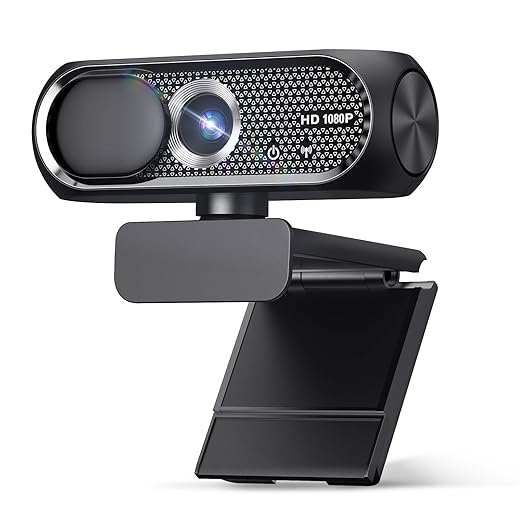
Framing: place the camera at or slightly above eye level, back up enough so your upper torso is visible, and avoid strong backlight.
Lighting and acoustic fixes that move the needle
A compact LED panel or clip-on ring (Elgato Key Light Air, Lume Cube) is usually smarter than a pricier camera—good lighting reduces noise from auto‑gain and makes faces read as sharper. Aim for soft, frontal light at 45 degrees; diffuse with paper or a softbox. For audio, a small reflection filter, a rug, or a few foam panels near the mic beats expensive mics in echoey rooms.
Ecosystem and software
Use built‑in noise suppression (Zoom/Teams), or DSP tools (NVIDIA Broadcast, Krisp) when needed. Match choices to your platform and workflow: USB mics plug‑and‑play for most people; XLR setups reward users ready for an audio interface.
Next, we’ll map these upgraded peripherals to the ports, hubs, and networking choices that keep them connected and simple.
Connectivity and hubs: future-proofing our workflow with the right ports and networking
A reliable, well-planned connectivity layer is the unsung hero of a tidy home office. We focus on the parts you rarely notice until they fail: stable networking, predictable wired paths for latency‑sensitive work, and a desktop dock that turns a single cable into a full workstation.
Wi‑Fi vs. wired: choose by use case, not trends
For general browsing and video calls, modern Wi‑Fi 6 is more than enough. For gaming, low‑latency audio production, or large file transfers, wired Ethernet still wins.

Ethernet, PoE, and switches for more complex setups
Run Cat6/Cat6a for future headroom; keep runs ≤100 meters. If you’re adding APs, IP cameras, or VoIP phones, PoE (802.3af/at/bt) simplifies power and placement—look to a small unmanaged PoE switch for a couple of endpoints, and a managed switch only if you’ll VLAN or prioritize traffic.
Product notes: Netgear GS308 (non‑PoE) is a cheap eight‑port option; Ubiquiti and TP‑Link switches add PoE choices and easier AP integration.
Docks and hubs: what unlocks the modern laptop
A dock should deliver power delivery (PD) that matches your laptop, at least two video outputs (or Thunderbolt MST), and fast data lanes (USB‑A/USB‑C 10Gbps, SD card). Prefer Thunderbolt 4/USB4 if you want multi‑monitor daisy‑chaining and guaranteed bandwidth. Beware vendor quirks: some Windows laptops need vendor drivers; Macs are stricter about MST vs. native DisplayPort.
Models we recommend to compare: CalDigit TS4, OWC Thunderbolt Dock, Anker PowerExpand Elite — balance port count, PD watts, and price.
Quick buying checklist
Power, cable management, and small accessories that make big differences
We close our upgrade checklist with the underrated but transformative items: reliable power, disciplined cabling, and a handful of ergonomic add‑ons. These are low‑risk buys that improve uptime, focus, and comfort faster than decorative upgrades.
Protecting power: surge protectors, UPS, and smart outlets
Start with surge protection. A quality surge protector (or a small UPS for laptops/desktops) prevents a single blackout or spike from wrecking your day — and your gear. We favor APC Back‑UPS or CyberPower CP1500 class units for workstations that need 30–90 minutes of safe shutdown time. For convenience and automation, add smart outlets or a smart power strip (TP‑Link Kasa, Wemo) so monitors, lamps, or chargers respond to routines and voice control. When choosing, check joules rating, clamped voltage, and PD wattage for USB‑C ports.
Tidy cables, better focus and thermal performance
Cable clutter isn’t just ugly — it steals attention and traps heat. Simple fixes give outsized returns:
Small accessories that punch above their price
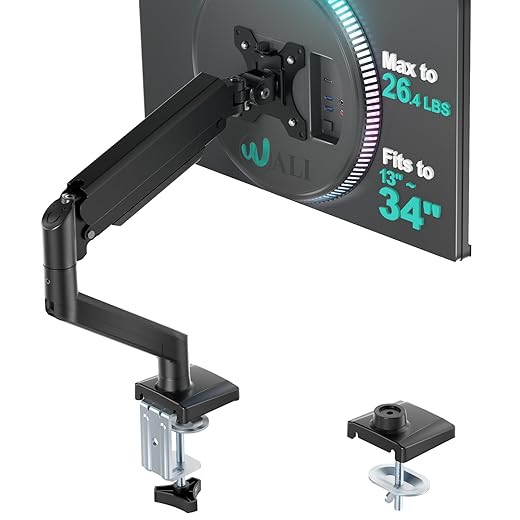
A few inexpensive pieces replicate much of a furniture overhaul: a solid monitor arm (metal, VESA‑compatible) clears desk real estate; a laptop stand (Twelve South, Rain Design) improves airflow and posture; a compact footrest smooths long days; a modular desk organizer keeps essentials at hand. Evaluate by design (finish, footprint), build quality (metal vs plastic), and compatibility (VESA size, laptop thickness). Cost vs ROI tends to favor these: $30–$150 each, and they deliver comfort, ergonomics, and usable surface instantly.
Next, we pull these choices into a simple phased upgrade plan so you can buy smart and stagger costs.
Putting it together: a simple phased upgrade plan
We recommend a phased order: ergonomics first, then display/input, audio/video, connectivity, and lastly power/cable and small accessories. For conservative spenders: chair pad or laptop stand, basic keyboard/mouse, modest webcam; balanced: midrange ergonomic chair, 27″ monitor, wired mechanical keyboard, USB condenser mic; aggressive: standing desk, dual 4K monitors, pro-grade audio, gigabit router and hub. Buy for experience and ecosystem fit—components should compound, not clash.
Quick checklist before checkout: measure clearances, confirm ports/OS compatibility, check return windows/warranty, read recent reviews, and test setup promptly. Let’s upgrade smartly and enjoy work again this week now.

Chris is the founder and lead editor of OptionCutter LLC, where he oversees in-depth buying guides, product reviews, and comparison content designed to help readers make informed purchasing decisions. His editorial approach centers on structured research, real-world use cases, performance benchmarks, and transparent evaluation criteria rather than surface-level summaries. Through OptionCutter’s blog content, he focuses on breaking down complex product categories into clear recommendations, practical advice, and decision frameworks that prioritize accuracy, usability, and long-term value for shoppers.








