

Why the Cheapest Setup Matters More Than Ever
We frame the tablet vs. laptop question not as a specs race but as a question of practical value: what tools let us reliably get work done without wasting money. We prioritize day-to-day productivity, ergonomics, software compatibility, and long-term total cost of ownership. That shifts the conversation from raw power to usable, repeatable workflows.
This guide examines real-world trade-offs: screens, keyboards, apps, battery life, and the peripherals that make a cheap device useful. We test common user profiles and recommend the cheapest setups that still deliver serious productivity. This isn’t about the absolute cheapest impulse buy — it’s about the cheapest setup that still gets work done. Expect clear, practical buying recommendations ahead.


Tablet vs Laptop: Which Makes the Best Portable Workstation?
Defining ‘Gets Work Done’: Tasks, Workflows, and User Profiles
We start by treating “gets work done” as a spectrum, not a single trophy. Our job is to map common workflows to the least-expensive hardware that still feels reliable and unobtrusive. That means breaking tasks into practical categories and setting minimal, measurable thresholds so a device doesn’t become a constant frustration.
Common workflows and what they demand
Measurable thresholds that matter
Quick user profiles (how to decide right now)
These criteria let us judge value by productivity‑per‑dollar, reliability, portability, and ecosystem fit — next, we’ll examine the hardware trade‑offs that follow from those choices.
Hardware Trade-offs: Screens, Keyboards, and Portability
We get tactile here: the physical choices you make determine whether a cheap setup is merely portable or actually usable for a full workday. Below we break down the trade-offs in plain terms and give concrete ways to spend—or save—without wrecking productivity.
Display size, aspect ratio, and touch
Screen size and shape change your workflow more than CPU benchmarks. A slightly wider, taller display (3:2 or 4:3) gives documents and web apps more vertical space; 16:10 leans toward media. Touch and stylus input are huge wins if you annotate PDFs, sketch, or take handwritten notes—tablets like the Pixel Tablet or Galaxy Tab S line make that natural. For spreadsheet-heavy work, prioritize a screen you can split into two or three panes comfortably.
Keyboard feel and layout
If we’re typing more than occasional messages, the keyboard is the prime investment. Detachable folios are portable but often compromise key travel and layout. Cheap Bluetooth keyboards (Logitech K380, Microsoft Designer) give proper spacing and sharper feedback for a fraction of OEM folios. Look for stable home-row spacing and a predictable top row—function keys or easy media controls matter in real use.
Hinges, lap use, and weight distribution
How a device sits on your lap affects hours of use. Convertibles with robust kickstands (Surface family) or clamshell laptops spread weight differently than tablet+folio combos, which can be front‑heavy and wobbly. Consider a lightweight chassis with a rigid hinge if you work in cafes or planes.
Smart corners to cut (practical rules)
These tactile choices set the day-to-day comfort bar; next we’ll look at how battery, heat, and real-world performance either uphold—or betray—those hardware decisions.
Software and Ecosystem: Apps, File Access, and Compatibility
OS and app availability
Not all operating systems are created equal for work. iPadOS and Android give smooth touch-first experiences with rich app stores, but they still restrict background multitasking and low-level system access. Windows tablets run full desktop apps, which matters if your workflow depends on Excel macros, full Premiere, or local developer toolchains. We suggest listing your must-have apps before buying: if one is missing or crippled on a platform, that cheap device becomes a paperweight.
Browser-first vs native apps
Modern web apps (Google Docs, Figma, Slack, Notion) narrow the gap — a capable browser often gets us through a day. But browser parity isn’t perfect: Chrome on iPad is still a wrapper for WebKit, and some pro tools only expose advanced features to native desktop clients. When in doubt, test the web app on the tablet you’re considering.
File management and workflows
Tablets push you toward cloud-first habits. Make this practical:
Ecosystem integration and peripherals
Ecosystem features—handoff, quick pairing, cross-device clipboard—often matter more than raw specs. A cheap tablet that effortlessly syncs with your phone, laptop, and cloud can outpace a pricier isolated device. Pair tablets with a Bluetooth keyboard, a trackpad, and a reliable cloud backup to bridge gaps.
Next, we’ll measure how these software choices hold up under sustained use when battery, heat, and performance constraints start to matter.
Battery Life, Heat, and Real-World Performance
Sustained loads: what actually kills the day
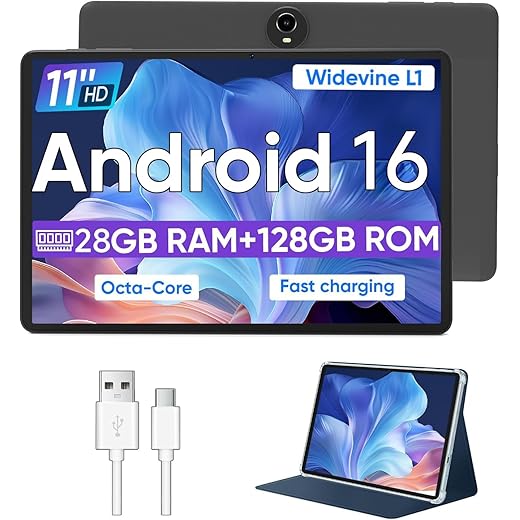
Battery life and thermals are the difference between a device that survives a transcontinental flight and one that dies during your third video call. In our hands-on comparisons, ARM-based tablets (think iPad Air/M-series or modern Android slates) tend to stretch battery while keeping UI animations smooth. Budget laptops with low-end Intel or AMD chips can match screen-on time at idle but often fall apart under sustained browser tabs, 1080p video calls, or light photo edits.
Throttling and heat: why clocks matter more than cores
When a device heats up, the CPU reduces clocks to protect itself. That’s throttling, and on cheap laptops with cramped cooling it arrives quickly—the result is choppy video, laggy scrolling, or long export times. Tablets are engineered for passive cooling, so they trade peak throughput for steadier, more usable performance. For workflows that spike CPU (compiling, batch exports), expect laptops to finish faster initially but slow down mid-task.
Practical ways to keep things usable
Perceived snappiness beats synthetic numbers
We care more about app launch time, scrolling fluidity, and quick context switches than raw benchmark scores. A snappy tablet with responsive UI and decent RAM will feel better in meetings than a laptop that posts higher benchmark results but stutters under multitasking. Small choices—fast storage, 8GB+ RAM, efficient OS—deliver the most consistent day-long experience.
Connectivity, Peripherals, and Building a Complete Setup
The minimal kit that actually turns a device into a workstation
A cheapest device alone rarely feels like a workstation. In practice, we recommend a short list that delivers the biggest returns for the least money:
These five items are cheap relative to an upgraded machine but shift usability dramatically — we’ve turned tablets into full-day editors and cheap laptops into stable meeting stations with them.
Tethered vs wireless: cost and workflow trade-offs
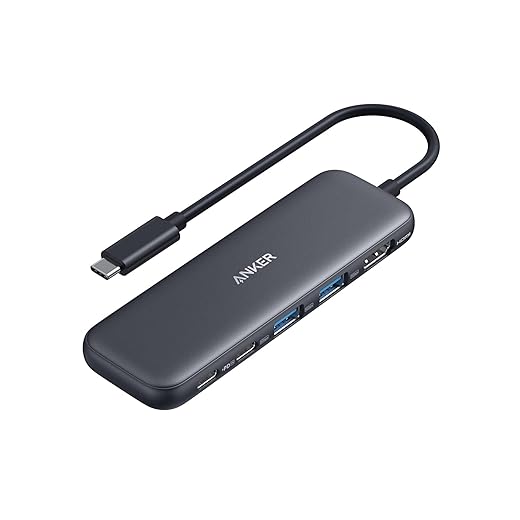
Wired peripherals are cheaper, lower-latency, and easier to manage in a single-desk scenario (USB-C hub + wired mouse). Wireless gear buys freedom: a compact setup for cafes or planes with minimal cable fuss. Expect an extra $20–60 for decent Bluetooth peripherals; factor in occasional pairing quirks and batteries. For travel, we lean wireless plus a small hub — it’s a tiny up-front cost for huge ergonomic benefit.
Should we buy accessories or upgrade the device?
Often, one or two quality accessories (keyboard + SSD or a good hub) deliver more day-to-day improvement than a minor CPU bump. If your device lacks ports, however, a hub is non-negotiable.
Hidden costs and resale
Don’t forget repairability, warranty length, and resale value. A slightly pricier, repairable laptop or one with a strong trade-in program can save money over two sealed-budget tablets that die out of warranty. We track these when recommending upgrades — because downtime and unexpected repairs are real expenses in any “cheap” setup.
Next we’ll map practical configurations by budget and use case.
Practical Configurations and Buying Advice for Different Budgets
We’ll translate the trade-offs above into four real, buy-today kits. For each profile: the cheapest viable device, the one or two accessories that make it usable all day, the real compromise, and the single place to spend a little more for the biggest payoff.
Highly mobile note-taker
The cheapest kit that actually feels like a notetaking machine: Samsung Galaxy Tab S6 Lite (S Pen included).
Remote worker who needs a compact second screen
Cheapest, practical second monitor: 15.6″ portable monitor (Lepow / ASUS ZenScreen).
Student balancing essays and videos
Cheapest all-rounder: Lenovo Chromebook Duet (detachable) or a budget Intel/ARM tablet with keyboard.
Small-business owner (email, spreadsheets, calls)
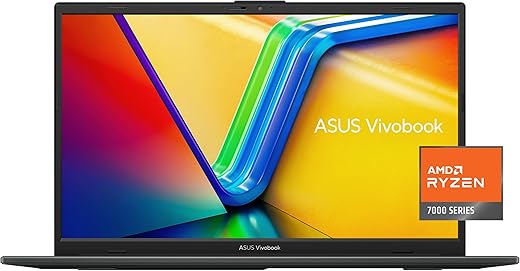
Cheapest viable machine: refurbished or entry Ryzen/Intel laptop with 8GB RAM, 256GB SSD (Lenovo IdeaPad 3 / Acer Aspire 5).
Next, we’ll summarize practical rules of thumb to help choose between these setups.
How to Choose: Practical Rules of Thumb
We keep it simple: match the device to your dominant workflow — tablets win for reading, meetings, and light touch-first tasks; laptops win for multitasking, heavy apps, and keyboard‑centric work. Prioritize screen quality and input (good keyboard + stable hinge or folio) over chasing a marginal CPU upgrade — responsiveness and comfort matter more day‑to‑day. Account for ecosystem friction: app availability, file access, and cloud continuity determine whether a cheaper tablet truly fits.
Buy a durable keyboard and decent charger before upgrading internals. Accessories and habits often deliver more productivity per dollar than a pricier device.

Chris is the founder and lead editor of OptionCutter LLC, where he oversees in-depth buying guides, product reviews, and comparison content designed to help readers make informed purchasing decisions. His editorial approach centers on structured research, real-world use cases, performance benchmarks, and transparent evaluation criteria rather than surface-level summaries. Through OptionCutter’s blog content, he focuses on breaking down complex product categories into clear recommendations, practical advice, and decision frameworks that prioritize accuracy, usability, and long-term value for shoppers.








